NYCAPS Paystub Instructions
Step 1 - Website Link - https://www1.nyc.gov/site/opa/my-pay/my-paycheck.page
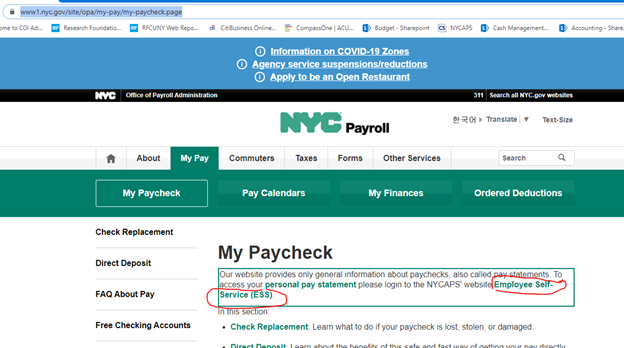
Step 2 - Click on Employee Self-Service (ESS) on the top of the page.
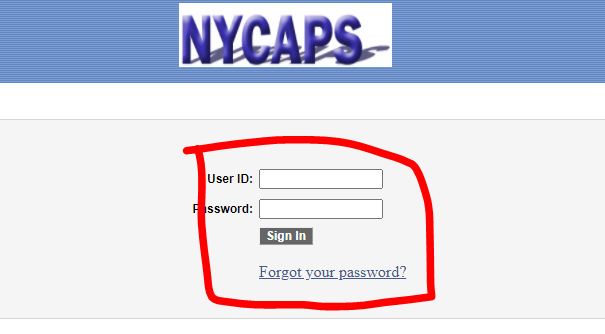
Step 3 – Enter your User Id and Password
Note: Your used id is your reference#, this number is located on your paystub (under “Reference #”), please see screenshot below.

For password, please follow the following instructions (you will be prompted to change your password after the initial login):
Your initial password consists of the last two digits of your SSN, an (_) underscore, the first three letters of your birth month (must be all upper case), your birth day including the leading zero, and your birth year (i.e., the password for an employee with an SSN of XXX-XX-XX99 and a birth date of January 01, 1910 would be 99_JAN011910).
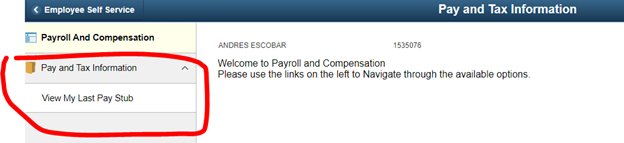
Step 4: Click on “Pay and Tax Information”
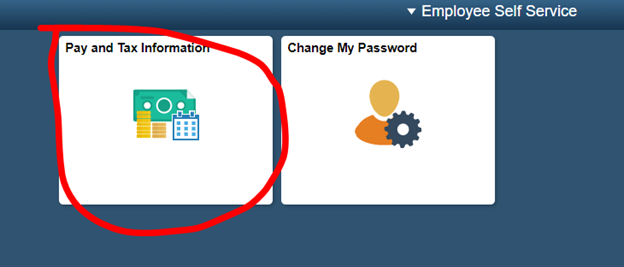
Step 5: Click on “Pay and Tax Information” and then “View My Last Pay Stub”
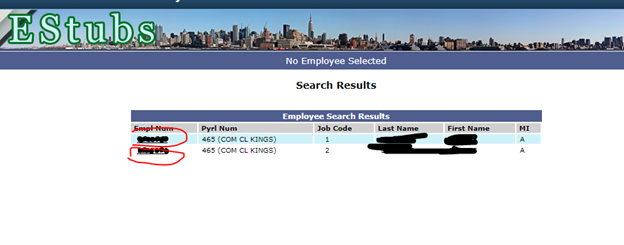
Step 6: If you have multiple positions, please click on the various options to select each position
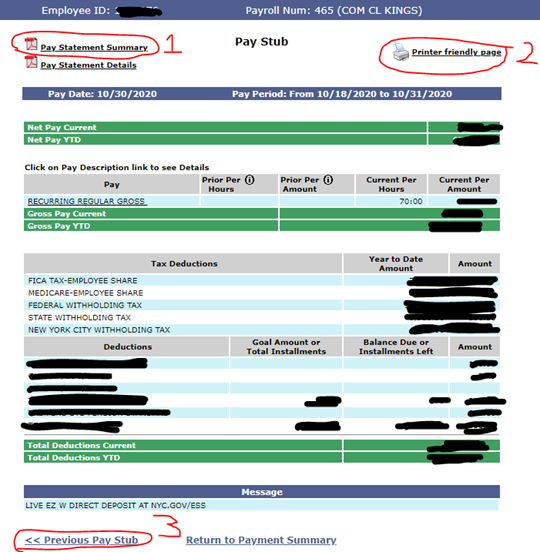
Step 7: You will see your most current paystub displayed on the screen. The following options are available from top of the screen to the bottom:
- Pay Statement Summary – Window that displays stub in the traditional format we are accustomed to.
- Printer Friendly page – Click on this to print a printer friendly version of your paystub.
- Previous Pay Stub – View up to a year’s worth of your paystubs